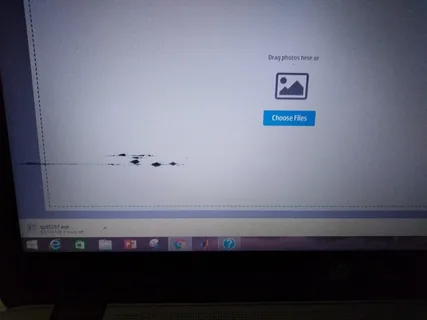
You pick up your laptop or phone, and there it is. A weird smudge that never wipes away. It’s not dirt. It’s not glare. It’s a pressure mark.
These spots show up when the screen’s been pressed too hard or squeezed for too long. They can look bright, gray, or even black, depending on how deep the pressure went.
It doesn’t mean your device is ruined, but it’s a sign the display’s taken a hit. Once those layers inside the screen get warped, it becomes challenging to fix them. Let’s break down what is really going on, what causes screen pressure marks, and how to keep them from happening again.
What Pressure Marks Really Are
Every LCD or LED screen consists of several thin layers stacked together, including glass, a light diffuser, and a liquid crystal panel. When pressure is applied to the wrong spot, those layers compress unevenly. Light can’t travel through normally, so you see cloudy patches or dark bruises that never move.
It’s not like a crack or a dead pixel. The glass looks fine. But underneath, the liquid crystal layer has shifted just enough to leave a mark. And once that happens, it tends to stay.
What Usually Causes Them
Most pressure marks come from everyday habits that don’t seem risky at all, until they add up.
1. Tight Bags and Cases
Stuffing your laptop into a bag that’s already packed presses on the lid just enough to bend it slightly. Do that a few dozen times, and you’ll start seeing faint spots where the screen flexed most.
2. Closing the Lid on Small Objects
It only takes one pen or a charging cable left on the keyboard. The lid shuts, the object pushes into the display, and there’s your mark.
3. Heavy Weight or Pressure
Setting something on top of your device, even a book or another laptop, compresses the screen slowly. The damage creeps in before you notice it.
4. Cleaning Too Hard
We’ve all done it. A fingerprint won’t budge, so you press harder with a cloth. But that extra pressure is all it takes to stress the panel.
5. Heat and Moisture
Excess heat can soften the adhesives that hold screen layers together. Once they shift, the light scatters incorrectly, creating what appears to be a pressure mark, even if nothing touched it.
Can You Fix Pressure Marks?
If the spots are light and came from gentle pressure, they may fade a little once the stress is gone. Let the screen rest for a few days, keep it cool, and avoid touching the area.
If nothing changes, the damage is inside. That means the liquid crystal layer or backlight has already warped, and the only real fix is a screen replacement.
Online “tricks” like heating the screen, rubbing the mark, or using suction cups sound harmless, but they can melt adhesives or spread the damage further. In most cases, trying to fix it yourself just makes the spot bigger.
When It’s Time for a Repair
If the mark hasn’t faded or it’s starting to darken and spread, you’ll need a professional repair. A technician can check if it’s just the outer layer or the full LCD that’s affected. Replacing the screen restores the color, brightness, and clarity completely.
A good shop will also inspect the hinges, lid alignment, and pressure points that caused the damage in the first place. Fixing those keeps the new screen from suffering the same problem later.
It’s a quick repair for someone who knows what they’re doing. Usually takes minimal time, depending on the model.
How to Prevent Pressure Marks
Once you know how fragile screens really are, prevention becomes a simple habit.
- Use a padded sleeve or a slightly loose bag, never something that squeezes the device.
- Before closing your laptop, check for any debris on the keyboard, even a small grain.
- Avoid placing heavy objects on top of laptops or tablets.
- Clean with a soft cloth and almost no pressure.
- Keep devices out of direct sunlight or hot car interiors.
Small choices like these keep your screen looking new far longer than you’d expect.
How to Tell It’s Getting Worse
Pressure marks usually start small, typically just a faint shadow. But you’ll know it’s spreading if the patch gets darker or changes color. Sometimes the area near it begins to look slightly warmer or cooler in tone.
If you’re using a phone, touch issues might follow. A soft spot in the display can make the touchscreen lag or misread taps. Once that starts, replacement is the only fix.
Conclusion
Pressure marks look minor, but they’re the kind of issue that grows quietly. They appear when the screen layers inside your device become compressed, and once that happens, the marks rarely fade away. Light ones might ease a little, but deeper ones usually mean it’s time for a new screen.
The best way to avoid them is to stay gentle. No tight bags, no stacked gear, no hard cleaning. Handle your devices with care and give the screens room to breathe.
And if you already see screen pressure marks that won’t go away, a professional repair will bring your display back to normal and save you from bigger headaches later.